While building out some customer labs recently, I discovered something that seems obvious in hindsight but wasn’t front of mind — you can stop and start Azure Firewall to avoid paying for it when it’s not in use. For dev/test or pre-production environments where the firewall doesn’t need to run around the clock, this is a simple way to cut costs significantly.
This post walks through the stop/start process, covers the pricing across all three Azure Firewall SKUs, and includes the PowerShell commands you’ll need.
Why Would You Stop an Azure Firewall?
Azure Firewall billing is per deployment hour — as long as it’s allocated and running, you’re paying for it. In production that’s expected, but in lab, dev/test, or pre-production setups the firewall is often sitting idle overnight and at weekends.
By stopping the firewall when it’s not needed, billing stops accordingly. When you need it again, you start it back up. All of your rules, policies, and configuration are retained when deallocated — you’re only stopping the compute, not wiping the config.
Note: When you stop and start the firewall, the private IP address may change. If you have User Defined Routes (UDRs) pointing to the firewall’s private IP, double-check they’re still correct after starting it back up. In a lab environment this is usually manageable, but it’s worth keeping in mind.
Azure Firewall Pricing by SKU
Azure Firewall comes in three tiers: Basic, Standard, and Premium. The pricing below is for the West Europe region at time of writing.
| SKU | Per Hour | 730 Hours / Month | Data Processed |
|---|
| Basic | $0.395 | $288.35 | $0.065 / GB |
| Standard | $1.25 | $912.50 | $0.016 / GB |
| Premium | $1.75 | $1,277.50 | $0.016 / GB |
Data processing charges are additional and will vary by workload. Always verify current pricing at Azure Firewall Pricing.
To put this into perspective: if you’re running a Standard firewall in a lab during business hours only (say 9 hours a day, 5 days a week), that’s roughly 180 hours a month instead of 730. That drops the monthly cost from ~$912 down to ~$225 — a saving of around $687 per month for just that one resource.
Stopping Azure Firewall
The stop command is identical no matter how your firewall is deployed — Standard VNet, with a management NIC for forced tunneling, or in a Secured Virtual Hub (vWAN). Deallocate() doesn’t care about the underlying configuration:
1
2
3
4
| # Stop the firewall
$azfw = Get-AzFirewall -Name "FW Name" -ResourceGroupName "RG Name"
$azfw.Deallocate()
Set-AzFirewall -AzureFirewall $azfw
|
The difference between the three configurations only shows up when you start the firewall back up.
Starting Azure Firewall
Starting requires a bit more work — you need to re-associate the firewall with its virtual network and public IP addresses. This is where the three configurations differ.
Standard Firewall (No Management NIC)
1
2
3
4
5
6
| # Start the firewall
$azfw = Get-AzFirewall -Name "FW Name" -ResourceGroupName "RG Name"
$vnet = Get-AzVirtualNetwork -ResourceGroupName "RG Name" -Name "VNet Name"
$publicip = Get-AzPublicIpAddress -Name "Public IP Name" -ResourceGroupName "RG Name"
$azfw.Allocate($vnet, @($publicip))
Set-AzFirewall -AzureFirewall $azfw
|
If your firewall has multiple public IPs, pass them all in the array:
1
2
3
4
5
6
| $azfw = Get-AzFirewall -Name "FW Name" -ResourceGroupName "RG Name"
$vnet = Get-AzVirtualNetwork -ResourceGroupName "RG Name" -Name "VNet Name"
$publicip1 = Get-AzPublicIpAddress -Name "Public IP1 Name" -ResourceGroupName "RG Name"
$publicip2 = Get-AzPublicIpAddress -Name "Public IP2 Name" -ResourceGroupName "RG Name"
$azfw.Allocate($vnet, @($publicip1, $publicip2))
Set-AzFirewall -AzureFirewall $azfw
|
Firewall with a Management NIC (Forced Tunneling)
1
2
3
4
5
6
7
| # Start the firewall
$azfw = Get-AzFirewall -Name "FW Name" -ResourceGroupName "RG Name"
$vnet = Get-AzVirtualNetwork -ResourceGroupName "RG Name" -Name "VNet Name"
$pip = Get-AzPublicIpAddress -ResourceGroupName "RG Name" -Name "azfwpublicip"
$mgmtPip = Get-AzPublicIpAddress -ResourceGroupName "RG Name" -Name "mgmtpip"
$azfw.Allocate($vnet, $pip, $mgmtPip)
Set-AzFirewall -AzureFirewall $azfw
|
Firewall in a Secured Virtual Hub (vWAN)
1
2
3
4
5
| # Start the firewall
$virtualhub = Get-AzVirtualHub -ResourceGroupName "vHUB RG Name" -Name "vHUB Name"
$azfw = Get-AzFirewall -Name "FW Name" -ResourceGroupName "Firewall RG Name"
$azfw.Allocate($virtualhub.Id)
Set-AzFirewall -AzureFirewall $azfw
|
Automating It with an Azure Automation Account
Running these commands by hand is fine occasionally, but for a lab that gets stopped and started regularly, it’s worth wiring it up to an Azure Automation Account so it can be triggered on a schedule (or on-demand) without anyone needing Connect-AzAccount on their own machine.
The setup boils down to three things: a managed identity, an RBAC role assignment, and two runbooks.
1. User-Assigned Managed Identity
Assign a User-Assigned Managed Identity (UMI) to the Automation Account rather than relying on the system-assigned identity. This keeps the identity’s lifecycle independent of the Automation Account and makes it easier to grant/audit permissions separately.
2. RBAC — Network Contributor on the Hub Resource Group
The identity needs enough permission to allocate/deallocate the firewall, which means reading and updating the Firewall, its Virtual Network, and its Public IP addresses. Rather than assigning narrow permissions per-resource, the simplest approach is:
Network Contributor assigned to the UMI, scoped at the hub resource group.
1
2
3
4
5
6
7
8
9
| module createRoleAssignment 'br/public:avm/res/authorization/role-assignment/rg-scope:0.1.1' = {
name: 'create-role-assignment-${locationShortCode}'
scope: resourceGroup(resourceGroupName)
params: {
principalType: 'ServicePrincipal'
principalId: createManagedIdentity.outputs.principalId
roleDefinitionIdOrName: '/providers/Microsoft.Authorization/roleDefinitions/4d97b98b-1d4f-4787-a291-c67834d212e7' // Network Contributor
}
}
|
Scoping at the resource group — rather than to the firewall resource alone — means the same identity can also read/allocate the Public IP addresses (<firewall-name>-pip and, if forced tunneling is enabled, <firewall-name>-pip-mgmt) needed during the Allocate() call, without a second role assignment.
3. Automation Account Variables + Runbooks
The Automation Account needs two variables so the runbooks know which identity and subscription to authenticate with:
| Variable | Purpose |
|---|
HubNetwork_SubscriptionId | Target subscription ID the firewall lives in |
HubNetwork_ManagedIdentityClientId | Client ID of the UMI attached to the Automation Account |
Two PowerShell 7.2 runbooks handle the actual work — Start-AzureFirewall and Stop-AzureFirewall. Both authenticate the same way, using the UMI rather than a stored credential:
1
2
3
4
5
| $subscriptionId = Get-AutomationVariable -Name 'HubNetwork_SubscriptionId'
$managedIdentityClientId = Get-AutomationVariable -Name 'HubNetwork_ManagedIdentityClientId'
Connect-AzAccount -Identity -AccountId $managedIdentityClientId -ErrorAction Stop | Out-Null
Set-AzContext -SubscriptionId $subscriptionId -ErrorAction Stop | Out-Null
|
From there, the runbooks run the same Get-AzFirewall / Allocate() / Deallocate() logic shown earlier, with a quick check up front so re-running a runbook against a firewall that’s already in the desired state is a no-op instead of an error. No schedules are attached by default — in this lab setup the runbooks are triggered manually (or from a pipeline), but they’re straightforward to attach to an Automation Account schedule if you want a fully hands-off start/stop cycle.
Here are the full runbooks:
Start-AzureFirewall.ps1
1
2
3
4
5
6
7
8
9
10
11
12
13
14
15
16
17
18
19
20
21
22
23
24
25
26
27
28
29
30
31
32
33
34
35
36
37
38
39
40
41
42
43
44
45
46
47
48
49
50
51
52
53
54
55
56
57
58
59
60
61
62
63
64
65
66
67
68
69
70
71
72
73
74
75
76
77
78
79
80
81
82
83
84
85
86
| # Requires -Modules Az.Accounts, Az.Network
<#
.SYNOPSIS
Allocates (starts) the Azure Firewall.
.DESCRIPTION
Designed to run in an Azure Automation Account using a User Managed Identity (UMI).
Retrieves the Azure Firewall, Virtual Network, and Public IPs, then allocates the firewall.
Required Automation Account Variables:
- HubNetwork_SubscriptionId : Target subscription ID
- HubNetwork_ManagedIdentityClientId : Client ID of the UMI
Permissions required on the UMI:
- Network Contributor on the hub resource group (minimum)
#>
param(
[string] $customerName = 'bwc',
[string] $environment = 'prod',
[string] $locationShortCode = 'weu'
)
# Derived names — must match IaC naming convention
$resourceGroupName = "rg-$customerName-shared-hub-$environment-$locationShortCode"
$virtualNetworkName = "vnet-$customerName-shared-hub-$environment-$locationShortCode"
$azureFirewallName = "afw-$customerName-shared-hub-$environment-$locationShortCode"
$publicIpName = "$azureFirewallName-pip"
$mgmtPublicIpName = "$azureFirewallName-pip-mgmt"
# region Authenticate
Write-Output "[Auth] Connecting using User Managed Identity..."
$subscriptionId = Get-AutomationVariable -Name 'HubNetwork_SubscriptionId'
$managedIdentityClientId = Get-AutomationVariable -Name 'HubNetwork_ManagedIdentityClientId'

Connect-AzAccount -Identity -AccountId $managedIdentityClientId -ErrorAction Stop | Out-Null
Set-AzContext -SubscriptionId $subscriptionId -ErrorAction Stop | Out-Null
Write-Output "[Auth] Connected. Subscription: $subscriptionId"
# endregion
# region Start Firewall
Write-Output "[Firewall] Retrieving: $azureFirewallName"
$azfw = Get-AzFirewall `
-Name $azureFirewallName `
-ResourceGroupName $resourceGroupName `
-ErrorAction Stop
if ($azfw.IpConfigurations.Count -gt 0) {
Write-Output "[Firewall] Firewall is already allocated. Nothing to do."
}
else {
Write-Output "[VNet] Retrieving: $virtualNetworkName"
$vnet = Get-AzVirtualNetwork `
-ResourceGroupName $resourceGroupName `
-Name $virtualNetworkName `
-ErrorAction Stop
Write-Output "[PIP] Retrieving: $publicIpName"
$pip = Get-AzPublicIpAddress `
-ResourceGroupName $resourceGroupName `
-Name $publicIpName `
-ErrorAction Stop
Write-Output "[PIP] Retrieving: $mgmtPublicIpName"
$mgmtPip = Get-AzPublicIpAddress `
-ResourceGroupName $resourceGroupName `
-Name $mgmtPublicIpName `
-ErrorAction SilentlyContinue
if ($mgmtPip) {
Write-Output "[Firewall] Allocating firewall with management NIC..."
$azfw.Allocate($vnet, $pip, $mgmtPip)
}
else {
Write-Output "[Firewall] Management NIC not deployed. Allocating firewall without it..."
$azfw.Allocate($vnet, $pip)
}
Set-AzFirewall -AzureFirewall $azfw | Out-Null
Write-Output "[Firewall] Firewall allocated successfully."
}
# endregion
|
Stop-AzureFirewall.ps1
 1
 2
 3
 4
 5
 6
 7
 8
 9
10
11
12
13
14
15
16
17
18
19
20
21
22
23
24
25
26
27
28
29
30
31
32
33
34
35
36
37
38
39
40
41
42
43
44
45
46
47
48
49
50
51
52
53
54
55
56
57
58
| # Requires -Modules Az.Accounts, Az.Network
<#
.SYNOPSIS
Deallocates (stops) the Azure Firewall to save costs.
.DESCRIPTION
Designed to run in an Azure Automation Account using a User Managed Identity (UMI).
Retrieves the Azure Firewall and deallocates it.
Required Automation Account Variables:
- HubNetwork_SubscriptionId : Target subscription ID
- HubNetwork_ManagedIdentityClientId : Client ID of the UMI
Permissions required on the UMI:
- Network Contributor on the hub resource group (minimum)
#>
param(
[string] $customerName = 'bwc',
[string] $environment = 'prod',
[string] $locationShortCode = 'weu'
)
# Derived names — must match IaC naming convention
$resourceGroupName = "rg-$customerName-shared-hub-$environment-$locationShortCode"
$azureFirewallName = "afw-$customerName-shared-hub-$environment-$locationShortCode"
# region Authenticate
Write-Output "[Auth] Connecting using User Managed Identity..."
$subscriptionId = Get-AutomationVariable -Name 'HubNetwork_SubscriptionId'
$managedIdentityClientId = Get-AutomationVariable -Name 'HubNetwork_ManagedIdentityClientId'
Connect-AzAccount -Identity -AccountId $managedIdentityClientId -ErrorAction Stop | Out-Null
Set-AzContext -SubscriptionId $subscriptionId -ErrorAction Stop | Out-Null
Write-Output "[Auth] Connected. Subscription: $subscriptionId"
# endregion
# region Stop Firewall
Write-Output "[Firewall] Retrieving: $azureFirewallName"
$azfw = Get-AzFirewall `
-Name $azureFirewallName `
-ResourceGroupName $resourceGroupName `
-ErrorAction Stop
if ($azfw.IpConfigurations.Count -eq 0) {
Write-Output "[Firewall] Firewall is already deallocated. Nothing to do."
}
else {
Write-Output "[Firewall] Deallocating firewall..."
$azfw.Deallocate()
Set-AzFirewall -AzureFirewall $azfw | Out-Null
Write-Output "[Firewall] Firewall deallocated successfully."
}
# endregion
|
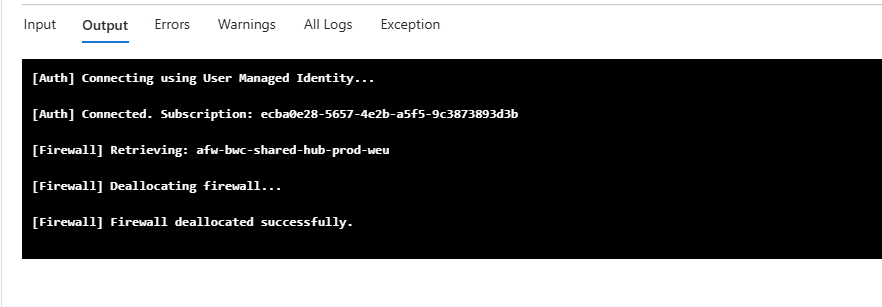
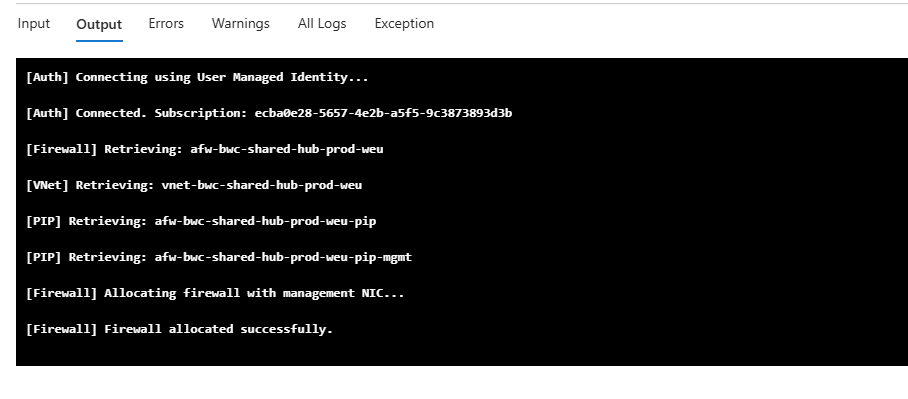
Lab Demo
Here’s the stop/start process running against my sandbox environment, using a standard VNet configuration.
Stopping the firewall:
Starting the firewall:
Things to Be Aware Of
- Private IP change: The firewall’s private IP is not guaranteed to remain the same after a stop/start cycle. Check any UDRs that reference it before assuming traffic is flowing correctly.
- Not for production: Stopping a firewall removes all network protection for resources that route through it. Only do this in environments where downtime is acceptable.
- Configuration is retained: Rules, policies, and settings are preserved when deallocated — stopping the firewall does not delete the resource or its config.
- Billing stops immediately: Once deallocated, the deployment hour charge stops. You’re only billed for the hours the firewall is allocated and running.
- Allow time to start: The firewall takes a few minutes to provision back up, so factor that in if you’re running automated start/stop schedules.
Summary
If you’re running Azure Firewall in a lab, dev/test, or pre-production environment, stopping it outside of working hours is one of the easiest cost wins available. The savings scale significantly on the Standard and Premium SKUs, and the commands are straightforward once you know what’s needed.
For the full reference, see the Azure Firewall FAQ on Microsoft Learn.